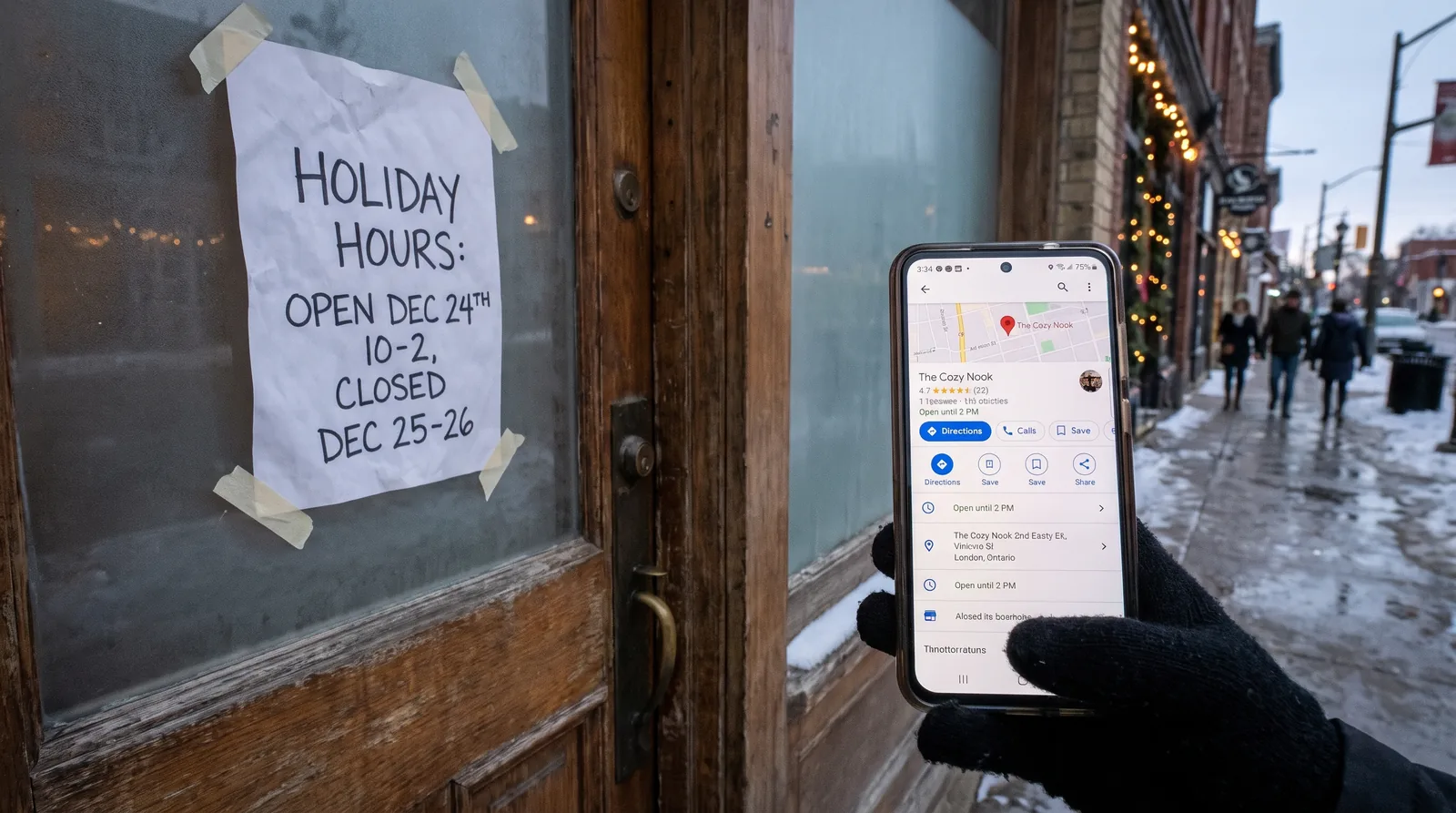
Quick answer: how do I set holiday hours on Google Business Profile?
Open your listing, go to the Hours section, add special hours for each changed date and mark full closures as closed. Save two weeks before the first closure, then check the listing logged out and match your website hours to it.
To set Google Business Profile holiday hours, open your listing, go to the Hours section, add special hours for each changed date and save, ideally two weeks before the first closure. Special hours override your regular schedule on those dates only, so the rest of your week stays untouched.
Seasonal updates like this one are part of our Google Business Profile service in London, Ontario, and this guide walks you through them one step at a time. If you run a shop, clinic, restaurant or trade business in London or Southwestern Ontario, your holiday schedule is probably decided by early November, yet the listing customers see on Google often still shows ordinary hours. It covers setup, an Ontario date calendar, what to post and how to protect your reviews, and it leaves full profile optimization to our other guides.
Why Google Business Profile holiday hours matter for local searches
Google Business Profile holiday hours matter because the hours on your listing are often the last thing a customer checks before they drive to you. A wrong time sends a person to a locked door, and that person is far more likely to leave a one-star review than a customer who simply could not find you.
Holiday weeks also change how people search. Queries such as "open now", "open Boxing Day" and "open late near me" rise when stores, clinics and restaurants change their schedules, and Google answers them from the hours stored in your profile. If those hours are wrong or missing, your listing can be skipped for a competitor whose hours are confirmed. Google's Business Profile guidelines ask owners to keep hours accurate, so a stale schedule is both a customer problem and a policy problem.
The risk is concentrated in a few weeks. A café in Wortley Village, a physiotherapy clinic in Old North and a tire shop in Byron all face the same pattern: shorter days, odd closures and a flood of first-time visitors who rely on the listing instead of calling. Our guide to common Google Business Profile mistakes in London lists incomplete or outdated hours as one of the errors that hurt a listing, and the holiday season is when that error costs the most.
What wrong hours actually cost
- Wasted trips. Customers arrive during a closure and go to the next result.
- Review damage. A comment such as "listed as open, was closed" stays public for years.
- Missed calls. Your phone rings after hours, and staff spend the day explaining the schedule.
- Lower trust. Inconsistent details weaken the signals Google uses to decide whether a listing is reliable.
How to set special hours on Google Business Profile step by step
You set special hours on Google Business Profile by opening the Hours section of your listing, choosing the special hours option, selecting each date and entering either open and close times or a closed marker. The whole job takes a few minutes per date once you are signed in as an owner or manager.
Google changes the wording of its menus from time to time, so look for the Hours section and the Special hours option instead of memorizing exact button names. The steps below describe the usual path, and the same logic applies on desktop and on a phone.
Set special hours from Search or Google Maps on a computer
- Sign in to the Google account that manages your listing.
- Search for your business name on Google, or find it in Google Maps.
- Choose Edit profile from the management panel that appears above the listing.
- Open the Hours section and select the option to add special hours or holiday hours.
- Pick the date from the calendar, then enter the open and close times, or mark the day closed.
- Add every date that differs from normal, then save or apply the changes.
This is also how you update business hours on Google Maps for a permanent change, because the same Hours section controls both the regular and the special schedule.
Set special hours from your phone
On a phone, search for your business name while signed in, or open the Google Maps app and find your profile under the business or "You" area. Tap the edit option, open Hours and add the special date in the same way. The phone route is useful when a staff member tells you on Friday afternoon that the shop will close early on Christmas Eve.
Mark a day as closed all day
A full closure needs the closed marker for that date, not a zero-length time range. Choose the date, then select the option to mark the business closed, so Google shows "Closed" on the day and not a confusing pair of identical times. Do this for Christmas Day, New Year's Day and any other date when no one is answering the door or the phone.
Check the result the way a customer would
After you save, open your listing in a private browser window or on a phone where you are not signed in. Look at the dates you changed and confirm each one. Google can take a short while to show updates, so check again the next day, and write down the date you made each change so that you can trace any problem later.
Which hours setting should you use?
Not every schedule change belongs in the same setting. The table compares the four options owners confuse most often.
| Setting | Use it when | What customers see | How long it lasts |
|---|---|---|---|
| Regular hours | Your normal weekly schedule changes for good | The new weekly times on every week | Until you edit them again |
| Special hours | A holiday, event or one-off day differs from normal | Your override on those dates only | Only the dates you select |
| Temporarily closed | You shut for renovations, illness or an extended break | A "Temporarily closed" label | Until you reopen the listing |
| Permanently closed | The location has closed for good | A "Permanently closed" label | Indefinite, and hard to undo |
Special hours are the right tool for almost every holiday. Use Temporarily closed only for a long break, because it removes the normal hours display and can make a listing look inactive. Never mark a location permanently closed as a shortcut, since reversing that status can take time.
Holiday date calendar for Ontario businesses, 2026 to 2027
An Ontario holiday calendar for Google Business Profile has about nine dates that deserve a decision between November and February. Ontario's Employment Standards Act sets the list of public holidays, and Remembrance Day is not one of them, although many offices and some retailers still close or shorten the day.
The table below uses the 2026 to 2027 calendar and shows a sample schedule for a typical London retailer. The times are examples only, so replace them with your own and check which dates your staff, suppliers and landlord expect you to observe.
| Date | Day | Occasion | Example special hours | Notes |
|---|---|---|---|---|
| Nov 11, 2026 | Wednesday | Remembrance Day | Open 11:00 to 17:00, or normal hours | Not a statutory holiday in Ontario, so many shops open |
| Nov 27, 2026 | Friday | Black Friday | Open 8:00 to 21:00 | Extended hours for retailers running sales |
| Nov 30, 2026 | Monday | Cyber Monday | Normal hours | Mostly an online date, so update your website banner |
| Dec 24, 2026 | Thursday | Christmas Eve | Open 9:00 to 15:00 | Early close is common, so tell customers the cut-off |
| Dec 25, 2026 | Friday | Christmas Day | Closed | Public holiday, so mark the whole day closed |
| Dec 26, 2026 | Saturday | Boxing Day | Open 10:00 to 18:00, or closed | Public holiday, and a busy retail day for those who open |
| Dec 31, 2026 | Thursday | New Year's Eve | Open 9:00 to 16:00 | Restaurants may extend, retail and clinics often close early |
| Jan 1, 2027 | Friday | New Year's Day | Closed | Public holiday, so mark the whole day closed |
| Feb 15, 2027 | Monday | Family Day | Closed or reduced | Public holiday in Ontario, so confirm well ahead |
Add local dates to this list as well. A business near Western University has quieter weeks when students leave, and a trade company in St. Thomas, Strathroy, Woodstock or Ingersoll may close for a shop-wide break between Christmas and New Year's. Any date that changes when your phone is answered belongs in the profile.
How far ahead should you enter these dates?
Enter them as soon as you know them. A practical rule is to have every date from Remembrance Day to New Year's Day saved by the last week of November, and the January and February dates saved before the holiday break begins. Early entry gives you time to catch typing mistakes, and it means a busy December week cannot push the job off the list.
What to post alongside your Google Business Profile holiday hours
Alongside special hours, post a short update that states the closure or the extended hours in words, because customers read posts and the Hours section in different places. A post can also carry an offer or a gift idea, which keeps the profile active and gives holiday shoppers a reason to click.
Our guide to Google Posts for local businesses explains the post types and how to publish them, so this section only covers what to say. Keep each post specific, and include the dates and times in the text so the information is searchable.
Post ideas that suit holiday weeks
- The schedule post. "We close at 3:00 p.m. on December 24 and reopen December 27 at 9:00 a.m."
- The last-order post. The final date for installations, repairs, deliveries or appointments before the break.
- The gift or offer post. A gift card, bundle or seasonal service, with a clear start and end date.
- The reopening post. A short note on the first day back, listing what is open and how to book.
Post the schedule at least a week ahead, and repeat it as the date gets close. Use an image of your storefront or team, not a stock photo, since real photos suit the local context better. For the rest of your profile fields, our Google Business Profile optimization checklist covers what to keep current all year.
How to handle reduced, split and extended hours
Reduced, split and extended hours are all entered as special hours, using one or more time ranges for the date and the correct closed marker for gaps. The key is to describe what is true on that specific day, so that a person reading the listing can plan a visit.
Reduced hours
If you open late or close early, enter the shorter range for the date. Tell customers in a post why the change exists if it helps, for example a staff event or a family break, but keep the post brief.
Split hours
Some businesses close at midday, such as a salon that takes a break between clients or a restaurant that serves lunch and dinner. Add two time ranges for the same date, for example 11:30 to 14:00 and 17:00 to 21:00, so the gap is visible.
Appointment-only and phone-first days
If the doors are closed but you answer the phone or take bookings, do not enter normal opening hours. Mark the day closed and explain in a post and on your website that appointments are available by phone or online. A customer who sees "Open" will walk in, and that is the exact problem you are trying to avoid.
Extended hours
Late-night shopping, a pre-Christmas rush or a weekend of extra appointments can be entered the same way. Check that your staff schedule supports the hours before you publish them, because a listing that promises more than you deliver is as damaging as one that shows the wrong day.
Sensible planning for your team
Choose your holiday hours once, write them in a shared document, and use that document as the single source for your profile, your website and your door sign. A team that works from different versions of the schedule creates the mismatch that reviewers complain about.
Want holiday hours checked before the rush?
We review your hours, categories and details against your website and directories in a short audit. Start with our free SEO audit, or read how our Google Business Profile optimization service keeps a listing accurate all year.
How to avoid the wrong-hours review
You avoid a wrong-hours review by making the same schedule visible in every place a customer looks, then answering any complaint quickly and politely. Most hours complaints come from a mismatch between the listing, the website and the sign on the door, not from a single mistake.
Make every source say the same thing
Update your website footer, contact page, social profiles and the main directories on the same day as your profile. If your site uses structured data, update the opening hours there as well, since Schema.org's LocalBusiness type includes opening hours properties that search engines can read. Our guide to NAP consistency for local SEO explains why matching details across the web supports your local visibility.
Put a notice where people look
Add a banner to your website homepage and a short sign on the door at least a week before the first change. A banner is a quick change and removes much of the doubt. A phone greeting that states the holiday schedule helps in the same way.
Reply templates for hours complaints
If a review says you were closed when the listing said open, reply within a day, apologize without arguing and state the correct hours. Our guide on how to get more Google reviews covers review requests, so the templates below focus only on this one situation. Adjust the wording to match your own voice.
- Listing was wrong: "Thank you for telling us, and we are sorry for the wasted trip. Our holiday hours were not showing correctly, and we have corrected them. We would be glad to help you on your next visit."
- Customer misread the date: "We are sorry for the confusion. Our hours that day were 9:00 a.m. to 3:00 p.m., and we have added a note to our website and profile for next year."
- Customer reached a closed line: "Thanks for your message. Our phones are answered Monday to Friday, and our holiday schedule is posted on our profile. We will return your call as soon as we reopen."
Keep replies short, factual and free of blame. A calm answer shows future readers that the business cares, and it often matters more than the original complaint.
A pre-season checklist for the last week of November
A pre-season checklist for Google Business Profile holiday hours has eight items, and it fits on one page you can hand to a manager. Work through it in the last week of November, then repeat a shorter version before the January and February dates.
- List every changed date from Remembrance Day to Family Day, including local closures.
- Confirm the times with your team and write them in one shared document.
- Enter special hours in the Hours section for each date, using the closed marker for full closures.
- View the listing logged out on a phone and a computer, and check each date.
- Update your website footer, contact page and homepage banner, plus any structured data hours.
- Update other profiles such as Apple Maps, Facebook, Bing Places and the main directories.
- Publish a schedule post and repeat it a week later.
- Set a reminder to reply to hours reviews within one day and to restore normal hours after the break.
That last step is easy to forget. After the holiday, check that the special dates expired as planned and that your regular schedule is showing correctly. If you want help with that routine, our guide to a 30-day Google Business Profile plan shows how to build it into your month.
Holiday hours take a small amount of time to manage and a large amount of goodwill to repair if they are wrong. Set them early, check them as a customer would, and keep every source of information in agreement.